
What we’re building
Four pieces talk to each other in a straight line:
- Your browser opens Open WebUI, from this PC or any PC on your network.
- Open WebUI (v0.6.31 or newer) runs in Docker on port 3000 and treats the MCP server as a tool server.
- GitHub MCP server (
ghcr.io/github/github-mcp-server) runs in Docker in HTTP mode on port 8082. - GitHub receives the API calls, authenticated with your personal access token.
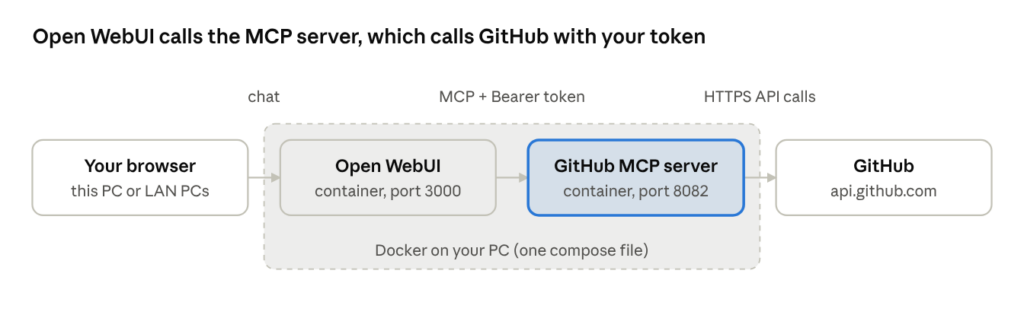
Your token travels from Open WebUI to the MCP server on every request, so the server itself stores no secrets. If you ever need to connect an app that doesn’t speak MCP, there’s an optional helper called mcpo covered near the end.
All commands are for Windows + Docker Desktop + PowerShell, using C:\docker\github-mcp as the working folder. On Mac or Linux the steps are the same; just swap the PowerShell line-continuation backtick for a backslash.
Prerequisites
| Item | Why you need it | Where to get it |
|---|---|---|
| Docker Desktop (WSL 2 backend) | Runs the containers | docker.com — open it once and wait for “Engine running” |
| Git for Windows | Downloads the source (only if you build it yourself) | git-scm.com |
| Open WebUI v0.6.31+ | The chat app that uses the tools | Included in the compose file below |
| GitHub Personal Access Token | Lets the server act as you on GitHub | Steps below |
Create a GitHub token
- On GitHub, click your avatar → Settings → Developer settings → Personal access tokens → Tokens (classic) → Generate new token (classic).
- Name it
open-webui-mcpand pick an expiration (90 days is a sensible default). - Tick the minimum scopes GitHub recommends:
repo,read:org,read:packages. Addgist,notificationsorprojectonly if you want those tools. - Click Generate token and copy it (it starts with
ghp_). You won’t see it again.
A fine-grained token also works and is safer for work or school accounts, because you can limit it to specific repositories.
Check that Docker works
docker --version
docker run --rm hello-world
Step 1: Get the server
Option A — pull GitHub’s prebuilt image (recommended):
mkdir C:\docker\github-mcp
docker pull ghcr.io/github/github-mcp-server:latest
If the pull fails with an authentication error, run docker logout ghcr.io and try again. A stale saved login is the usual cause.
Option B — clone the source and build it yourself. Use this if you want to pin a version, read the code, or your network blocks ghcr.io:
mkdir C:\docker\github-mcp
cd C:\docker\github-mcp
git clone https://github.com/github/github-mcp-server.git
cd github-mcp-server
git checkout main   # or a release tag; list them with: git tag -l
Tip: keep this folder out of OneDrive or other synced folders. Syncing slows Docker builds and could upload your .env secrets.
Step 2: Create the config files
A single docker-compose.yml runs both the MCP server and Open WebUI on a shared Docker network, so they can find each other by name. Create these two files in C:\docker\github-mcp.
.env keeps secrets out of the compose file:
# Any long random string; keeps Open WebUI logins and tool keys valid across restarts
WEBUI_SECRET_KEY=change-me-to-a-long-random-string
Generate a random value in PowerShell with [guid]::NewGuid().ToString() + [guid]::NewGuid().ToString().
docker-compose.yml:
services:
  github-mcp:
    image: ghcr.io/github/github-mcp-server:latest
    # build: ./github-mcp-server   # use instead of image: if you built from source (Option B)
    container_name: github-mcp
    command: ["http"]              # HTTP mode instead of the default stdio
    ports:
      - "8082:8082"                # use "127.0.0.1:8082:8082" to block other PCs
    restart: unless-stopped

  open-webui:
    image: ghcr.io/open-webui/open-webui:main
    container_name: open-webui
    ports:
      - "3000:8080"
    environment:
      - WEBUI_SECRET_KEY=${WEBUI_SECRET_KEY}
    volumes:
      - open-webui:/app/backend/data
    extra_hosts:
      - "host.docker.internal:host-gateway"
    depends_on:
      - github-mcp
    restart: unless-stopped

volumes:
  open-webui:
Already running Open WebUI elsewhere? Delete the open-webui service and keep only github-mcp.
Notice your GitHub token is not in either file. In HTTP mode the server reads it from each request’s Authorization: Bearer header, which you’ll enter in Open WebUI in Step 5.
Step 3: Build the image (Option B only)
Skip this if you pulled the prebuilt image. Otherwise, build from the repo’s Dockerfile:
cd C:\docker\github-mcp\github-mcp-server
docker build -t github-mcp-server:local .
docker images | findstr github-mcp
Then in docker-compose.yml, change the image line to image: github-mcp-server:local, or swap it for the build: ./github-mcp-server line so docker compose up --build rebuilds it for you. To update later, run git pull and rebuild.
Step 4: Start the containers
cd C:\docker\github-mcp
docker compose up -d
docker compose ps          # both should show "running"
docker logs github-mcp     # should say the HTTP server is listening on 8082
Test the MCP server by hand. Replace the token; a JSON reply containing "serverInfo" means it works:
$token = "ghp_yourtokenhere"
$body  = '{"jsonrpc":"2.0","id":1,"method":"initialize","params":{"protocolVersion":"2025-06-18","capabilities":{},"clientInfo":{"name":"test","version":"1"}}}'
Invoke-WebRequest -Uri http://localhost:8082/ -Method Post -Body $body `
  -ContentType "application/json" `
  -Headers @{ Authorization = "Bearer $token"; Accept = "application/json, text/event-stream" } |
  Select-Object -ExpandProperty Content
Now open http://localhost:3000. The first account you create becomes the Open WebUI admin.
Prefer plain docker run without Compose? This starts just the MCP server:
docker run -d --name github-mcp -p 8082:8082 --restart unless-stopped `
  ghcr.io/github/github-mcp-server:latest http
Handy day-to-day commands: docker compose stop, docker compose start, docker compose pull; docker compose up -d to update, and docker compose down to remove the containers (your Open WebUI data stays in its volume).
Step 5: Connect Open WebUI
Open WebUI v0.6.31 and later connect to MCP servers natively. Only an admin can add one.
- Click your name → Admin Panel → Settings → Integrations (called Tools in older builds).
- Under External Tool Servers, click + Add Connection.
- Fill it in using the table below.
- Click the verify/refresh icon. It should connect and list GitHub tools. Save.
- In a new chat, click the tools icon under the message box and switch on github. Pick a model that supports tool calling, and set its Function Calling to Native in advanced params if tools aren’t being used.
- Try: “List my 5 most recently updated GitHub repos.”
| Field | Value |
|---|---|
| Type | MCP (Streamable HTTP) — not OpenAPI |
| URL | See “Which URL to use” below |
| Auth | Bearer |
| Key | Your ghp_... token |
| Name / ID | github |
Which URL to use
| Where Open WebUI runs | Server URL |
|---|---|
| Same docker-compose.yml as above | http://github-mcp:8082 |
| Separate container on the same PC | http://host.docker.internal:8082 |
| Installed directly on the same PC | http://localhost:8082 |
| Another PC on your network | http://<MCP-PC-IP>:8082 |
Inside a container, localhost means that container itself, which is why Docker setups use the service name or host.docker.internal.
Limit what the AI can do (optional). If your Open WebUI version lets you add custom headers to the connection, add X-MCP-Readonly: true to block all write actions, and X-MCP-Toolsets: repos,issues,pull_requests to expose only those tool groups.
Sharing it with other PCs on your network
Find the host PC’s IP with ipconfig (look for IPv4 Address, e.g. 192.168.1.50), then open the ports in Windows Firewall from an admin PowerShell:
New-NetFirewallRule -DisplayName "GitHub MCP 8082" -Direction Inbound -Protocol TCP -LocalPort 8082 -Action Allow -Profile Private
New-NetFirewallRule -DisplayName "Open WebUI 3000" -Direction Inbound -Protocol TCP -LocalPort 3000 -Action Allow -Profile Private
Others on the network can now browse to http://192.168.1.50:3000. Keep your network profile set to Private, and never port-forward these to the internet: the MCP server has no login of its own.
Step 6: Connecting other apps
Any app that speaks MCP over HTTP can share the same server. Apps that only launch local (stdio) servers start their own copy of the container instead.
HTTP-capable apps (VS Code, Cursor, LibreChat, newer Claude clients and others) generally use this config shape. In VS Code it goes in .vscode/mcp.json under "servers": { "github": { ... } }:
{
  "type": "http",
  "url": "http://localhost:8082",
  "headers": {
    "Authorization": "Bearer ghp_yourtokenhere",
    "X-MCP-Toolsets": "default",
    "X-MCP-Readonly": "true"
  }
}
Stdio-only apps (such as Claude Desktop’s config file) start a short-lived container themselves:
{
  "mcpServers": {
    "github": {
      "command": "docker",
      "args": ["run", "-i", "--rm", "-e", "GITHUB_PERSONAL_ACCESS_TOKEN", "ghcr.io/github/github-mcp-server"],
      "env": { "GITHUB_PERSONAL_ACCESS_TOKEN": "ghp_yourtokenhere" }
    }
  }
}
Apps that only accept OpenAPI/REST tools, or Open WebUI older than v0.6.31, can use mcpo, a small proxy from the Open WebUI team. Create mcpo-config.json (check the mcpo README for the exact header syntax in your version):
{
  "mcpServers": {
    "github": {
      "type": "streamable-http",
      "url": "http://github-mcp:8082",
      "headers": { "Authorization": "Bearer ghp_yourtokenhere" }
    }
  }
}
Add this service to docker-compose.yml and run docker compose up -d:
  mcpo:
    image: ghcr.io/open-webui/mcpo:main
    command: ["--port", "8000", "--api-key", "pick-a-secret", "--config", "/config.json"]
    volumes:
      - ./mcpo-config.json:/config.json:ro
    ports:
      - "8000:8000"
Browse the tools at http://localhost:8000/github/docs. In Open WebUI, add it as type OpenAPI with URL http://mcpo:8000/github and Bearer key pick-a-secret. Because your GitHub token lives in mcpo-config.json here, keep that file out of shared or synced folders.
Troubleshooting
Most problems come down to a wrong URL, a stopped container or a token issue, so start with docker logs github-mcp.
| Symptom | Likely cause | Fix |
|---|---|---|
| Open WebUI says “connection failed” | Used localhost from inside a container | Use http://github-mcp:8082 (same compose) or http://host.docker.internal:8082 |
| Works on the host, not from other PCs | Firewall, or port bound to 127.0.0.1 | Add the firewall rules above; make sure ports reads "8082:8082" |
| Connection refused even locally | Container exited, or the server only listens on 127.0.0.1 inside the container | Run docker compose ps; check the logs and docker run --rm ghcr.io/github/github-mcp-server http --help for a listen-address flag |
| 401 / Bad credentials | Token wrong, expired, or auth type isn’t Bearer | Regenerate the token; set Auth to Bearer |
| Tools listed but never used | Model lacks tool calling | Pick a tool-capable model; set Function Calling to Native |
| 403 on an organization repo | Org requires SSO or token approval | On the token page, click Configure SSO or request approval |
| Image pull denied | Stale ghcr.io login | docker logout ghcr.io |
| “Error decrypting tokens” after restart | WEBUI_SECRET_KEY changed or missing | Keep the same value in .env |
Keeping it running
- Update monthly:
docker compose pull; docker compose up -d - Rotate your GitHub token before it expires, then update it in Open WebUI.
- Back up Open WebUI’s data:
docker run --rm -v open-webui:/data -v ${PWD}:/backup alpine tar czf /backup/openwebui-backup.tgz -C /data .
That’s it: your local AI now has hands on GitHub. Start with the read-only header while you get comfortable, then open it up as you trust it.